If you use Campbell Scientific data logger support software to connect to your data logger, you may monitor your data from within the software. Have there been times when you’ve seen “Undefined” or “N/A” instead of your data values? What does that mean, and how do you fix it? In this brief article, we’ll look at what to do—whether you’re using LoggerNet, PC400, or PC200W software.
LoggerNet
In the LoggerNet Connect screen, click Num Display (Numeric Display) from the menu bar and select Display 1, Display 2, or Display 3. If you see "Undefined" listed instead of your values, it means that those variables are not available for display.

Undefined values are often caused by a changed or different program running from the one that was running when the Numeric Display was set up.
To replace "Undefined" with your real-time values in the Numeric Display, follow these steps:
- Delete data values using either of these methods:
- Press the Delete All button to remove all data values from the display.
- Highlight the cells, and press the Delete button to remove the undefined data values from the display.
- Press the Add button to bring up the list of data tables that can be viewed.
- Select a table or field, drag it from the list, and drop it into a cell.
PC400 or PC200W
If you use the PC400 or PC200W Monitor Data tab, you may see "N/A" listed instead of your values. This means that those variables are not available for display. Frequently, this is caused by a changed or different program running from the one that was running when the Monitor Data tab was set up.
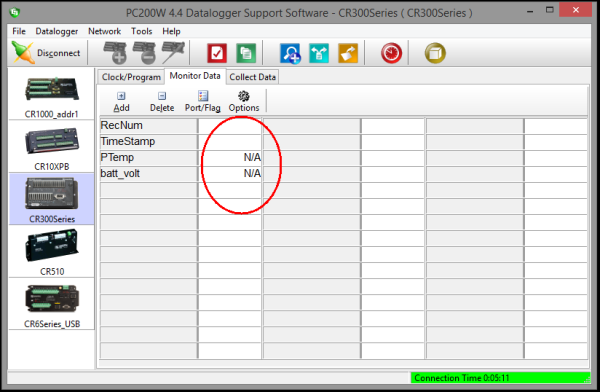
To replace "N/A" with your real-time values in the Monitor Data tab, follow these steps:
- Highlight the cells.
- Press the Delete button to remove the undefined data values.
- Press the Add button to bring up the list of data tables that can be viewed.
- Select a table or field, drag it from the list, and drop it into a cell.
Conclusion
Whether you use LoggerNet, PC400, or PC200W with your Campbell Scientific data logger, I hope this article helps you replace any “Undefined” or “N/A” values with your real-time values.
| Recommended for You: To learn more about the Table Monitor, read the "Tips and Tricks: More Than a Monitor" newsletter article and watch the "LoggerNet Software | Changing Variables" video. |
If you have any questions, post them below.
Related Articles
How to Replace “Undefined” or “N/A” with Your Real-Time Data Values
Find out what "Undefined" or "N/A" values are in your datalogger support software and what you can do about them.
November 30, 2016
How to Replace “Undefined” or “N/A” with Your Real-Time Data Values
Find out what "Undefined" or "N/A" values are in your datalogger support software and what you can do about them.
November 30, 2016
How to Replace “Undefined” or “N/A” with Your Real-Time Data Values
Find out what "Undefined" or "N/A" values are in your datalogger support software and what you can do about them.
November 30, 2016
How to Replace “Undefined” or “N/A” with Your Real-Time Data Values
Find out what "Undefined" or "N/A" values are in your datalogger support software and what you can do about them.
November 30, 2016