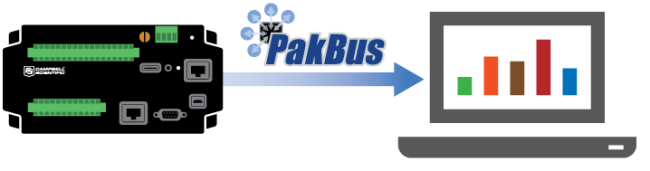
Have you come across situations where you want your data logger to initiate data retrieval, rather than your PC? For example, do you have an environmental condition that you want to transmit alarm data for?
Although IP-based communication is prevalent, sometimes you may need data-logger-initiated communication because of firewalls or issues with private versus public IP addresses. IP-capable Campbell Scientific data loggers have the ability to initiate IP connections. (In fact, our data loggers have had the ability to do callback on a landline since the release of the CR7 and 21X back in the early 1980s.) While you may need this callback capability, perhaps you don’t know how to implement it. I hope this article will quickly get you up and going so your data logger is initiating callback to LoggerNet.
Getting Started
Two things must happen for callback to work:
- The communications link must be established.
- The data logger must tell LoggerNet to start data collection.
Establishing the link is a different process depending on the type of telecommunications you are using. Initiating data collection, however, is the same—regardless of the type of communications link you use.
Direct Serial Connection
The most basic telemetry link is a direct serial connection. On a direct connection, the only change to make in LoggerNet is to select the Call-Back Enabled checkbox for the communications port in the Setup screen. That will make LoggerNet open the serial port and listen for incoming data collection requests.

If you are using the RS-232 port on a data logger, it is enabled by default. The communications link is ready. You just need something to happen to tell LoggerNet that the data logger wants to talk. To initiate communication, add a statement such as this to your data logger program:
If TimeIntoInterval (0,1,HR) Then SendVariables (SendResult,COMRS232,0,4094,0000,0,"Public","Callback",PTemp,1) EndIf
- The If block controls how often callback happens.
- The SendVariables() instruction is what triggers the data collection.
LoggerNet will recognize an attempt to set the Public variable named Callback as a request for data collection. Be sure to change the PakBus™ address in the SendVariables() instruction if LoggerNet is not set to the default of 4094.
After you have made the change in LoggerNet’s Setup screen and loaded the program onto the data logger, data collection will happen in the background. To verify that data collection is happening according to the interval in your data logger program, watch the Status Monitor.
| Recommended for You: For more information about the Status Monitor, watch the Status Monitor video. |
IP Connection
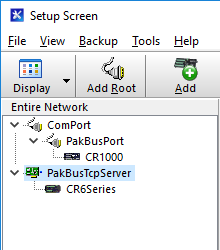
The configuration for callback is a little bit different for an IP connection. A PakBusTcpServer is recommended as the root device in the Setup screen. The TCP server has callback always enabled. It will open an IP port and listen for incoming connections from the attached data loggers. It is a good idea to have the PakBus Port Always Open checkbox selected. The default IP port number used is 6785.
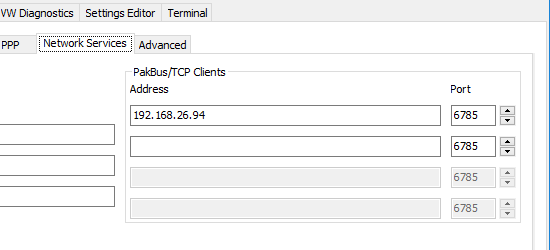
On the data logger, you must instruct it to open an IP socket to LoggerNet. The easy way to do this is with the PakBus/TCP Clients setting on the data logger. You can find this setting on the Network Services tab when your computer is connected to the data logger using DevConfig. You will need to enter the routable IP address and port number of the computer running the LoggerNet server. In this example, the data logger and computer were both within the same Ethernet network. I verified the IP address on the computer, then entered it into the setting on the data logger.
When you use an IP connection, you won’t have a fixed communications port to refer the SendVariables() instruction to. One way to avoid the issue is to use the auto discovery feature of PakBus. A value of -1 as the neighbor address will tell the data logger to ignore the ComPort parameter and use the connection in the data logger routing table. In fact, you can use 0 as the ComPort. The IP connection created by PakBus/TCP Client will be in the routing table and can be used.
SendVariables (SendResult,0, -1,4094,0000,0,"Public","Callback",PTemp,1)
After you make the configuration, callback over the IP connection will function very much like it does over the serial connection. You now have the data logger itself controlling when LoggerNet collects the data. For example, you could use a simple time-based trigger in the data logger. You could also trigger data collection based on comparing variables to thresholds, as in this example:
If WaterLevel > 10.5 Then SendVariables (SendResult,0,-1,4094,0000,0,"Public","Callback",PTemp,1) EndIf
Conclusion
If you have firewall or IP address issues, you may need to use data-logger-initiated communication—rather than PC-initiated data retrieval. You can use the callback functionality in Campbell Scientific data loggers for data-logger-initiated communication using either a direct serial connection or an IP connection. Whichever connection type you use, I hope you will find the callback functionality very useful and easy to configure. If you have any follow-up questions about callback, feel free to post them below.
Related Articles
Solar Energy in India and the Importance of Pyranometer Calibration
November 6, 2017
Intelligent Road Weather Information Systems (RWIS) on Canadian Winter Roads
June 1, 2017
Using Loops in CRBasic to Prevent Unnecessary Skipped Scans
Learn how to avoid having false skipped scans.
May 31, 2017
Using Loops in CRBasic to Prevent Unnecessary Skipped Scans
Learn how to avoid having false skipped scans.
May 31, 2017