[RD: Image idea—something along the lines of “Membership has its privileges.”]
Are you taking advantage of all the resources available to you via your Campbell Scientific website account? We’ve recently improved the Your Account area of our website to help you tailor your experience on our website, access important information, and manage your subscriptions. These resources are available to you 24/7 if you have a Campbell Scientific website account.
In this brief article, I’ll help you access the Your Account page, navigate your way around, and introduce you to our expanded offerings.
Getting Started
To see what’s new, follow these steps:
- Click the Log In link from the top menu bar on any page of our website:

- The Account Login page opens. Enter your email address and password.
- Click the Log In button.
- From any page on our website, click the Account drop-down menu and then click the Account Home link:
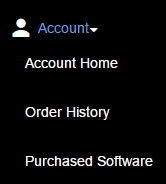
- The Your Account page opens.
- Click any of the links in the Account Menu to access our various account resources.
| Don’t Have an Account Yet? If you don’t have an account on our website already, it’s easy to sign up for one. Just follow these steps:
|
Whether you already have a Campbell Scientific website account or you just registered for a new account, you should be on a page that looks similar to this one: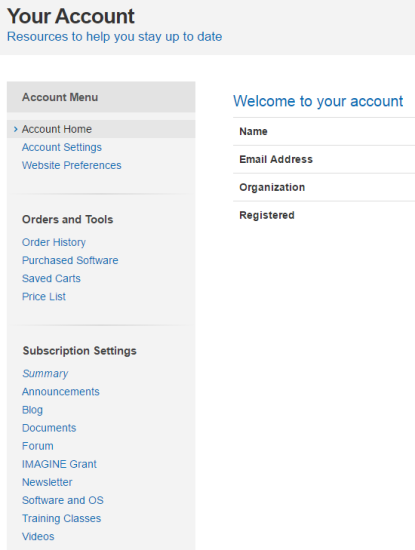
#1 - Change your account settings
In the Account Menu, click the Account Home link. On this page, you can review your account information, such as the email address that is tied to your Campbell Scientific website account. To change any of your account information, click the Account Settings link in the Account Menu. Update your settings, and click the Save button.
#2 - Tailor your website experience
In the Account Menu, click the Website Preferences link. From this page you can choose how information is displayed when you view product pages on our website:
- Product Search Navigation: You can choose whether product or ordering information is first displayed when you visit a product page.
- Product Details: You can choose whether to show or hide the descriptions of the product offerings on the Ordering Information pages.
Note: Each change you make on this page is automatically saved.
#3 - View your order history
Click the Order History link in the Account Menu. This page provides a list of orders that are tied to your account, including their order status. To review a particular order, click the link for that order.
#4 - Access downloads for your software licenses
This feature is available for all software licenses that are specifically assigned to you. (Software licenses older than 2006 or those licenses assigned to other people in your organization will not appear on your list.)
In the Account Menu, click the Purchased Software link. From this page you can access downloads for both free and purchased software. The CD key and serial number are also listed here if you need to reference them.
#5 - Manage your saved shopping carts
If you have created and saved a shopping cart without purchasing the list of items in it, you can manage that cart by clicking the Saved Carts link in the Account Menu.
To view the items in a cart, click the link for that particular cart.
If you click the Load Cart button, you’ll first load the cart and then you can add items to the cart, remove items, or edit items. After a shopping cart is loaded, you have access to several options, which are listed in the Cart Options:
- View as PDF: View the shopping cart as a PDF.
- Share Cart: Share the cart with someone else by providing that person’s email address.
- Request Review: Request that someone from Campbell Scientific review your cart prior to purchasing the items.
- New/Clear Cart: Clear the loaded cart so that you can start building a new cart. (This will NOT delete your cart.)
#6 - Update your subscriptions
In the Subscription Settings section of the Account Menu, the first option is Summary.
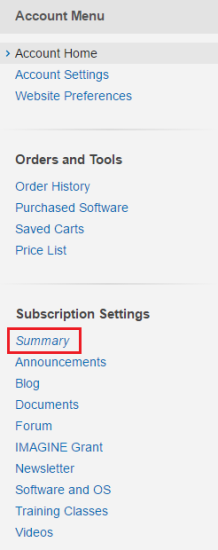
Click the Summary link to view all of the subscription options we offer, as well as your subscription status for each option. To change your subscription status for an option, click the option link in the Account Menu, and make your selections on the page. Currently, subscriptions are available for the following:
- Announcements
- Blog
- Documents
- Case Studies
- Manuals
- Press Releases
- Product Brochures
- Solution Brochures
- Technical Papers
- Forum
- IMAGINE Grant
- Newsletter
- Software and OS
- Training Classes
- Videos
By subscribing to any of these options, you will receive an email notification when new information, matching your preferences, is available.
Conclusion
I hope this information has helped make you aware of all the resources you can use because you have a Campbell Scientific website account. These resources are available to you 24/7 for your convenience. If you have any questions or comments regarding the Your Account page, please post them below.
Related Articles
LoggerNet Admin at Your Service for Mission-Critical Applications
Meet LoggerNet Admin, and learn the advantages of running LoggerNet Admin as a service.
August 5, 2016
LoggerNet Admin 功能介绍
Meet LoggerNet Admin, and learn the advantages of running LoggerNet Admin as a service.
August 5, 2016
LoggerNet Admin at Your Service for Mission-Critical Applications
Meet LoggerNet Admin, and learn the advantages of running LoggerNet Admin as a service.
August 5, 2016
LoggerNet Admin at Your Service for Mission-Critical Applications
Meet LoggerNet Admin, and learn the advantages of running LoggerNet Admin as a service.
August 5, 2016