
After you store measurements and other data in your data logger’s tables, how do you access that data to perform operations in your CRBasic program? Where can you get an all-access pass to your data? This article will explain how you can use a special CRBasic syntax to simplify the coding of your program to access your data and perform various operations.
DataTable() Structure
Typically, programs written for Campbell Scientific data loggers use one or more data tables to store measurements, calculations, and variable states. The rows of a data table are called records, and the columns are called fields.
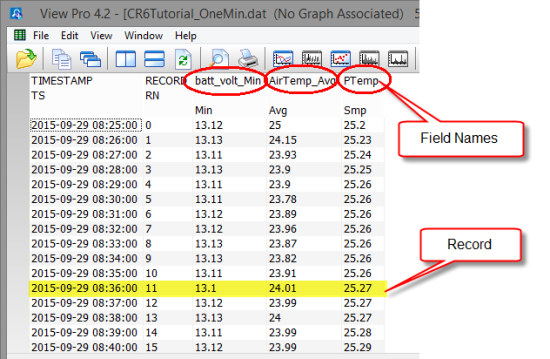
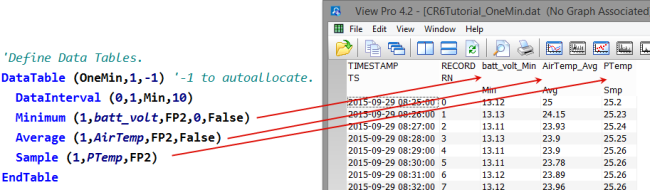
The tables in which the data records are stored are defined by DataTable()/EndTable instructions, as well as by output processing instructions. Here is an example of this type of definition:
CRBasic Syntax
After the data is stored in tables, you can access it using a special CRBasic syntax that follows this form: TableName.FieldName. This syntax accesses the value stored in a specific field of a specific table. Optionally, you can append the syntax with a field name index and records back using this format: TableName.FieldName (FieldName Index, Records Back).
Note: When Records Back = 1, you are accessing the most recent record.
Examples
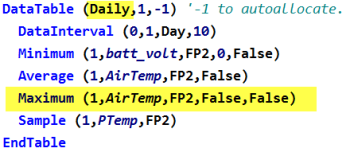
This example shows how to use the CRBasic syntax to take some data (yesterday’s maximum air temperature), which is stored in a data table, and write it to a Public variable named YesterdayMaxAirTemp. To do this, use the syntax YesterdayMaxAirTemp = Daily.AirTemp_Max,where Daily is the TableName, and AirTemp_Max is the FieldName.
Your DataTable() might look like this:
Additionally, to calculate the change in average air temperature over the previous seven days, your expression would look like this:
AirTempDiff = Daily.AirTemp_Avg(1,1) – Daily.AirTemp_Avg(1,7)
More Information
You can find more information about additional data table syntaxes, as well as programming examples, in the CRBasic Editor. Follow these steps to access this resource:
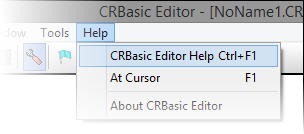
- In the CRBasic Editor, click the Help option in the menu bar across the top.
- In the drop-down menu, select CRBasic Editor Help.
- In the left-hand pane, click the Index tab, and type DataTable access in the keyword box.
- Click overview to access the full list of syntaxes.
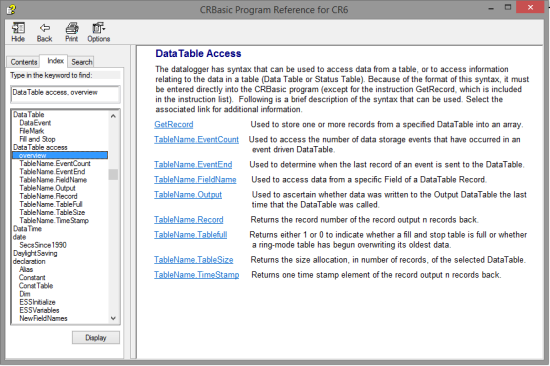
- You can click each syntax option to learn more.
- After you click an option, a window opens.
- In the window, click the Example link.
- A smaller window opens with an example program that uses the syntax.
I hope this article has helped you discover an all-access pass to your data. By using the CRBasic syntax to simplify your coding, you should be able to easily access and use your stored data. If you have any questions or comments, feel free to post them below.