
Our customers can now order our products directly from our website. We recently made this option available to complement our traditional ordering methods (phone, fax, and email). We hope that you find ordering our products online to be an easy experience, but we realize that doing something the first time can be a bit intimidating. This article will help guide you through the product ordering process.
Note: The content of this article pertains to our US website. Some of our worldwide offices may not offer online ordering currently.
Your Account
To order products directly from our website, your account with us must be enabled for online ordering. If you log in to our website, add products to your shopping cart, and are unable to purchase the products, your account may not yet be enabled for online ordering. You can request this option by sending an email message to orders@campbellsci.com.
A Secure Checkout Process
At Campbell Scientific, we use a secure checkout process with a third-party vendor for the processing of our credit card payments. This means that we do not store your credit card information. In fact, if you complete the payment and billing information and then go back to make a change to your order, you will need to re-enter your credit card information.
Ordering Online
Adding a product to your Campbell Scientific order is similar to adding a product to your shopping cart on other websites. Follow these steps to build your shopping cart and order products on our website:
- If you are not already logged in to our website, log in now.
- Navigate to the page for the product that you would like to order.
- Navigate to the product’s Ordering Information page by clicking the Ordering Info button. Depending on the type of device you’re using, this button looks like either of these:


- Depending on the type of product you’re ordering, you may have to select some configuration options.
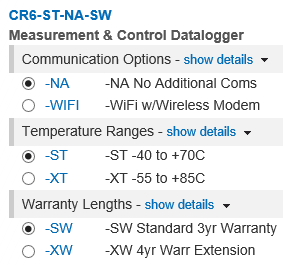
- For example, for the CR6 Measurement and Control Datalogger, you need to select from three sets of radio buttons on the left side:
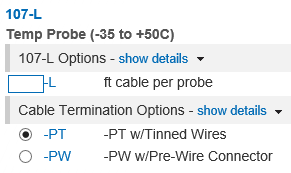
- As another example, for the 107-L Temperature Probe, in addition to selecting the appropriate radio button, you also need to enter a value in the box to specify how long the cable should be:
- For example, for the CR6 Measurement and Control Datalogger, you need to select from three sets of radio buttons on the left side:
- When you are done configuring your product, click the Add button to add the product to your shopping cart. Depending on the screen size of the device you’re using, the Add button may be located in the top right or just below the product configuration information.
- After you add a product to your shopping cart, a View Cart button is displayed either next to, or below, the Add button:
You can choose to view your shopping cart now or later.
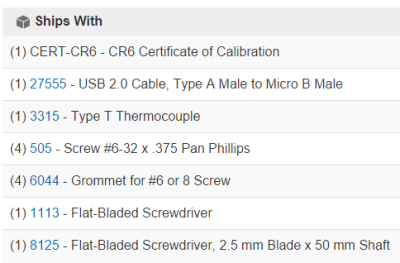
- While you are on the product’s Ordering Information page, it may be helpful to decide what other products you may need. If you scroll down the page, below the product configuration information, there may be a Ships With section. If a product comes with any additional items, they are listed in this section, and you don’t have to purchase them separately.
- There may be accessories, replacement parts, or services for your product that you wish to order at this time. If any of these items are available for your product, they are listed in these sections further down the page:
- Common Accessories
- Other Accessories
- Replacement Parts
- Services
- You can add other products to your shopping cart by repeating steps 2 through 8 above.
- When you have finished adding products to your shopping cart, review the items in your cart. There are two ways to do this:
- If the View Cart button is displayed, click it.
- If the View Cart button is not displayed, click the shopping cart icon.
- On a larger device screen, the shopping cart icon is in the top menu bar:

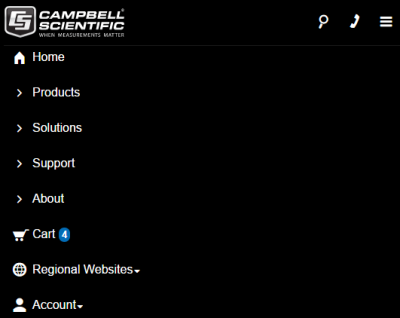
- On a smaller device screen, you can find this icon by clicking or tapping the hamburger menu icon on the far right:
- On a larger device screen, the shopping cart icon is in the top menu bar:
- The Shopping Cart page opens. Review your shopping cart to ensure that you have everything you need and to make any needed changes.
- If a product is configurable, click the edit link to configure it differently:
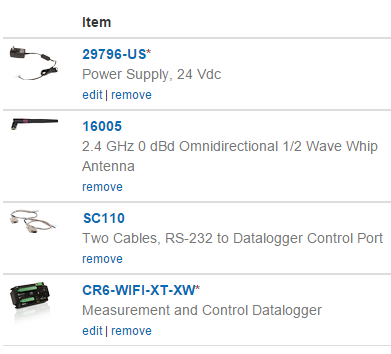
- Click the remove link to remove an item from your shopping cart.
- To update the quantity of a product, highlight the number in the Quantity box, type in the correct number, and click the update link that displays below the box.
- If a product is configurable, click the edit link to configure it differently:
- When your order is complete, click the Checkout button.
- A default address for your organization may appear on the Shipping Address page, which you can edit if necessary.
- You can select a different saved address by clicking the select button next to that address.
- You can add a new address by clicking the Enter a new address button.
- Click the CONTINUE button. It will take the system a moment to retrieve the shipping rate information. When this information is ready, the Shipping Method page opens.
- Using the radio buttons on the left, select the appropriate shipping method to meet your needs.
- After you click the CONTINUE button, the Payment & Billing page opens. Complete all of the fields on the page, and select the correct billing address.
- After you have completed all of the fields on the Payment & Billing page, the REVIEW ORDER button turns from gray to blue. Click the button.
- The Review Order page opens. Review your order to ensure that all of the information is correct.
- If you need to make changes to your order, click the Edit link next to the information that needs to be updated. Note: Making edits to your order will require you to complete the fields on the Payment & Billing page again.
- When you are satisfied that everything on your order is correct, click the Submit Order button.
- A confirmation message is displayed, and an email confirmation is sent to the email address that you have tied to your account with us.
Your Ordering Experience Matters to Us
We hope that you have a positive experience making purchases using our website. If you do, however, need assistance with an order you are trying to submit, contact the Order Entry group at orders@campbellsci.com or 435.227.9090.
Thank you for entrusting us to meet your measurement needs.
Related Articles
How to Easily Order Campbell Scientific Products Online
Take a quick tour of our online ordering process.
How to Easily Order Campbell Scientific Products Online
Take a quick tour of our online ordering process.
How to Easily Order Campbell Scientific Products Online
Take a quick tour of our online ordering process.
How to Easily Order Campbell Scientific Products Online
Take a quick tour of our online ordering process.